
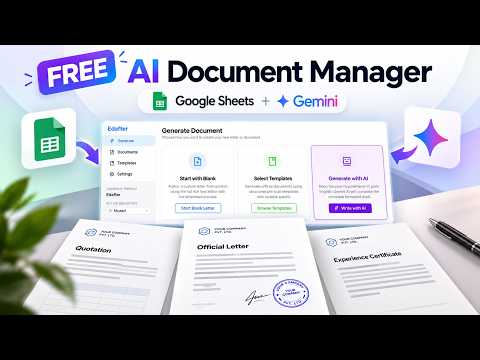
Managing official documents often requires complex software, but you can build a flexible, cost-effective solution using the tools you already use. By integrating Google Sheets with the Gemini API, you can create a centralized system that handles the generation, editing, and organization of your documents directly from a spreadsheet interface.
Why Build a Custom Document Manager?
Using Google Sheets as a backend provides a familiar interface for managing data, while Gemini brings the intelligence needed to draft and format content. This combination allows for:
- Centralized Storage: Keep all document metadata and content in one place.
- Automated Generation: Use AI prompts to fill templates based on your spreadsheet data.
- Efficiency: Reduce manual copy-pasting by automating the creation process.
Setting Up Your Workflow
To get started, you will need to structure your Google Sheet with columns for document titles, categories, and the specific data points required for your templates.
Integrating Gemini
You can connect Gemini to your sheet via Google Apps Script. This script acts as the bridge, sending your structured data to the AI model and returning the formatted document content back to your sheet or a linked Google Doc.
Best Practices for Automation
- Consistent Templates: Maintain clean Google Doc templates with clear placeholders for your AI-generated data.
- Data Validation: Use Google Sheets dropdowns and validation to ensure your input data remains consistent, which helps the AI generate more accurate outputs.
- Security: Always review AI-generated drafts before final signing or printing to ensure accuracy.